In order to sell on gunstores.com as a dealer you need to connect your merchant account. Below you will walkthrough the steps to set up that merchant connection.
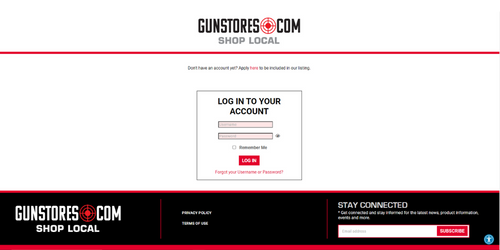
1.Log into your gunstores.com dealer account. You can do so by visiting www.gunstores.com/login.
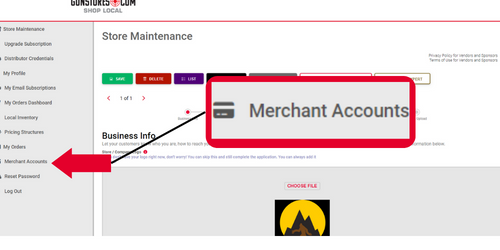
2. From the store maintenance screen on the left menu select 'Merchant Accounts'.
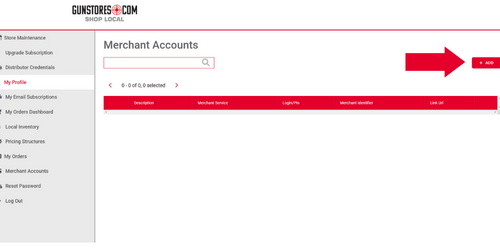
3. Once in the Merchant Account screen, click the ‘Add’ button on the top right.
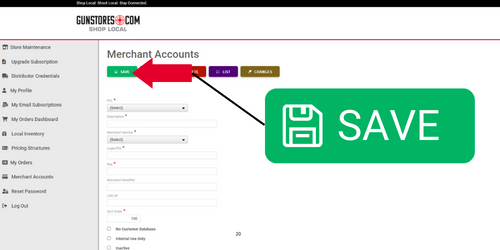
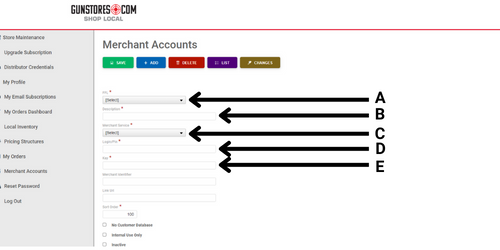
4. The next screen is where you enter all of your merchant account information.
A: In the drop down you will see your FFL / Store. Select your store from this drop down. If you have multiple locations and you want to have a different merchant account for each, you will need to do this step for each location.
B: The description area can be whatever information best used to describe the merchant account you are creating. For example, if you are using BlueDog, you can simply put something along the lines of “Fortis – Location ABC Gunstores”. You want this to be easily recognizable to you and your team.
C: Merchant Service is where you select the provider being used to manage your transactions. We have a majority of the merchants pre-loaded, so simply select the one you are connecting with. If you do not see your provider here, please contact dealerhelp@gunstores.com.
D: Login/Pin is simply your choice of password. This is unique to you and can be whatever you choose.
E: Key is the final piece of information needed. This a unique set of characters given to you by the merchant services provider. It is typically a long string of numbers and letters.
5. Last step, is to Save. Click the green save icon on the top left to finalize the connection.